Before we embark on a logo design project, we will ask you to create a mood board to show us your vison for your brand.
The reason we ask for you to generate a mood board is because a well-curated mood board serves as a visual briefing; providing us with inspiration and a clear direction. We always try to keep costs to a minimum for our clients, and this prevents us from heading off on a tangent that you won’t resonate with.
A mood board gets us on the same page – so we are both speaking the same visual language.
First, Define Your Brand Identity
Before diving into the mood board creation process, take a moment to reflect on your brand’s identity. Using the questionnaire we have supplied you with, ask yourself:
- What are the core values of my brand?
- Who is my target audience?
- What emotions do I want my brand to evoke?
- What style of logos do I like?
- What font styles do I like? For example, do I prefer bold, sans serif fonts? Or fine script fonts?
- What industry am I in? What is appropriate for this space?
This clarity will guide your selections and ensure your mood board aligns with your brand’s ethos.
Here’s a guide on how to create a mood board, using various tools like Pinterest, Microsoft Word, and Canva.

Option 1: Creating a Mood Board with Pinterest
Pinterest is a powerful tool for gathering inspiration from a vast array of sources.
- Create a Pinterest Account (if you don’t have one).
- Set Up a Board: Click on your profile and create a new board specifically for your logo design inspiration. Name it something clear, like “Logo Design Mood Board”. You may want to make this a secret board so only you, and the people you share it with, can see the pins.
- Start Pinning:
- Search for Inspiration: Use keywords related to your brand’s identity. For instance, if you’re a modern tech startup, search for terms like “modern logos”, “tech design”, “minimalist branding”, “tech start up logo design” etc.
- Save Pins: As you find images, colours, patterns, fonts, and other elements that resonate with your vision, pin them to your board.
- Organize Your Board: Arrange your pins to highlight the most important elements. Pinterest allows you to move pins around so that your most relevant inspirations are easily accessible.
- Share Your Board: Once your board is curated, share the link with us.
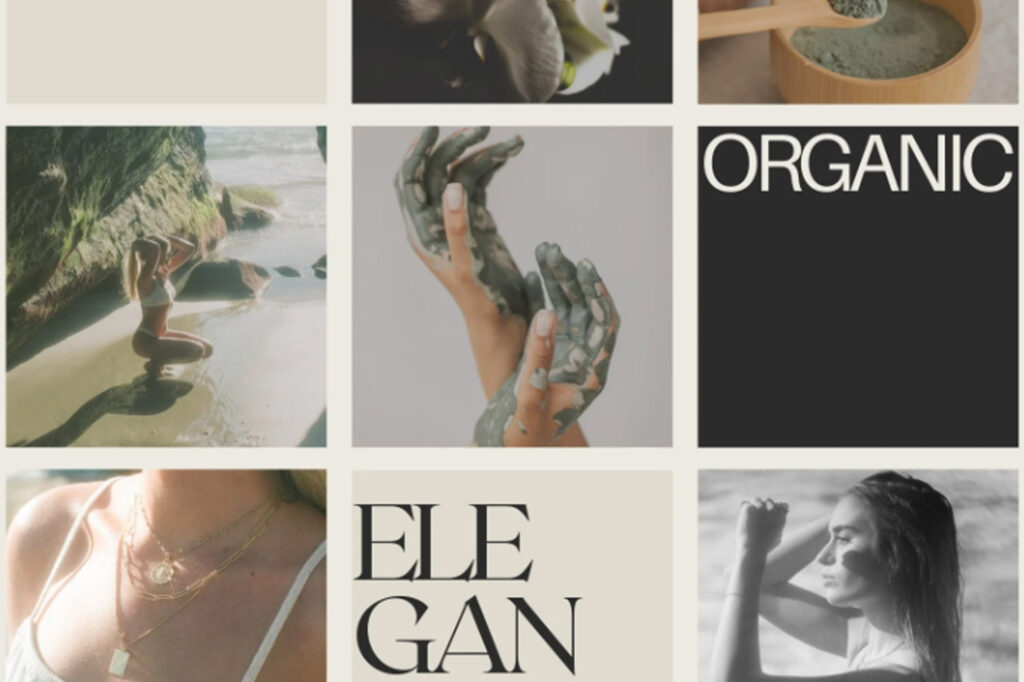
Option 2: Creating a Mood Board with Canva
Canva is a user-friendly graphic design tool perfect for mood boards.
- Sign Up or Log In: Access Canva and create an account if you don’t have one.
- Choose a Template: Canva offers a variety of mood board templates. Search for “mood board” in the template search bar and select one that fits your needs.
- Customize Your Board:
- Search for Inspiration: Use keywords related to your brand’s identity. For instance, if you are a beauty studio, search for terms like “beauty studio branding”, “feminine minimalist logos”, “wellness branding”, etc.
- Upload Images: Upload your own images from a google search, or use Canva’s library to find photos, illustrations, and icons that match your vision. Always thinking about who the logo is meant to appeal to and attract, and what message you are trying to convey.
- Add Text: Use text boxes to include descriptions, brand keywords, or any other relevant text.
- Arrange Elements: Canva’s drag-and-drop interface makes it easy to position and resize elements to your liking.
- Download and Share: Once your mood board is complete, download it as a PDF or JPEG and share it with us via email.

Option 3: Creating a Mood Board with Microsoft Word
Microsoft Word might seem unconventional, but it’s a versatile tool for creating mood boards. This can also be a good option if you aren’t familiar with online tools such as Pinterest and Canva.
- Open a New Document: Start with a blank document.
- Insert a Table: A table will help you organize your images and text. Go to the “Insert” tab and create a table with as many rows and columns as you need.
- Gather Your Elements:
- Search for Inspiration: Use keywords related to your brand’s identity. For instance, if you’re an outdoor adventure tourism company, search for terms like “outdoor logo designs”, “adventure tourism brand design”, “bold and active logo design”, “active fitness branding” etc.
- Images: Use the “Insert Picture” function to add images you’ve saved from the web. These could include logos, colour palettes, typography examples, and other relevant visuals.
- Colours and Fonts: Use text boxes and shapes to insert colours and fonts that appeal to you. Think about making sure they are appropriate, as messages are sent to the viewer with typography.
IE: if you are an adventure tourism brand – there are styles of fonts that will convey this better then others (bold sans serif fonts, would be more appropriate for this industry than fine script fonts).
- Arrange Your Elements: Drag and drop your images and text boxes within the table cells to create a cohesive layout.
- Save and Share: Save your document as a PDF and send it to your graphic designer.
Tips for an Effective Mood Board
- Consistency: Ensure all elements on your mood board complement each other. This creates a unified vision for your designer. Is there a coherent theme in your mood board? A good mood board should firmly position your brand in visual space.
- Variety: Include a mix of images, colours, fonts, and textures. This gives your designer a comprehensive understanding of your preferences. Don’t include things that do not align with your vision.
- Annotations: Adding brief notes or annotations can help explain why you chose certain elements, providing additional context; “ie: I like the colour of this one, but not the font.“